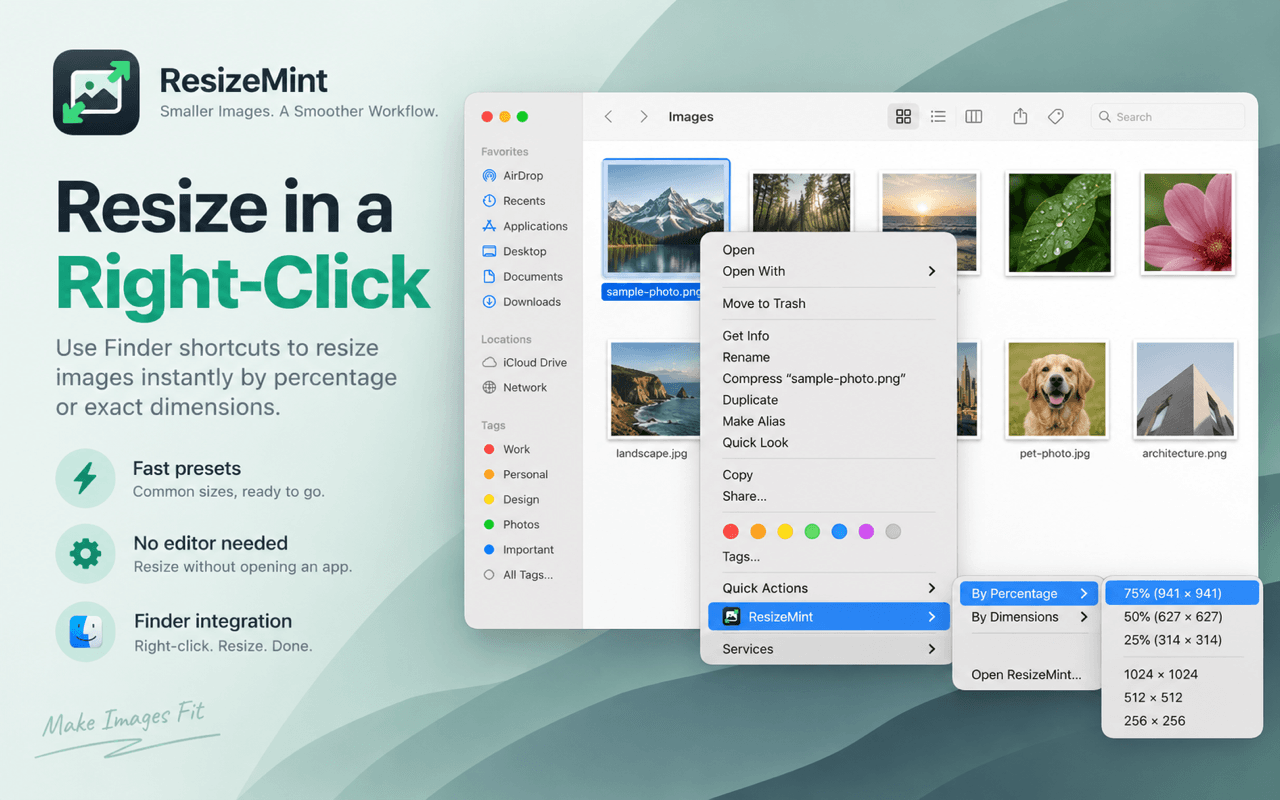
Native image resizing for macOS

Make images fit.
Right from Finder.

ResizeMint turns a common image chore into a right-click. Use your own percentage and pixel presets for quick jobs, or open the full workspace for previews, folders, and batch exports.

Available exclusively on the Mac App Store · Requires macOS 14 or later

ResizeMint percentage and pixel-size shortcuts inside the Finder right-click menu
Finder nativeResize without opening an editor
Batch readyDrop images or entire folders
Six formatsPNG, JPEG, HEIC, WebP & TIFF
Private by designEverything stays on your Mac

A shorter path to the right size

Skip the editor when resizing is all you need.

ResizeMint is made for Mac users who regularly prepare images for websites, documents, messages, app listings, and design handoffs. Select an image in Finder, right-click, and choose a percentage or exact pixel preset. The resized copy is created without interrupting your workflow with a full editor.

When the job needs more control, drag in one image, many images, or a folder. ResizeMint gives you a clear preview, linked width and height controls, output information, format-aware quality settings, and flexible export locations.

Built around real resizing workflows

Fast for repeat jobs.
Flexible for everything else.

01

Save the sizes you use

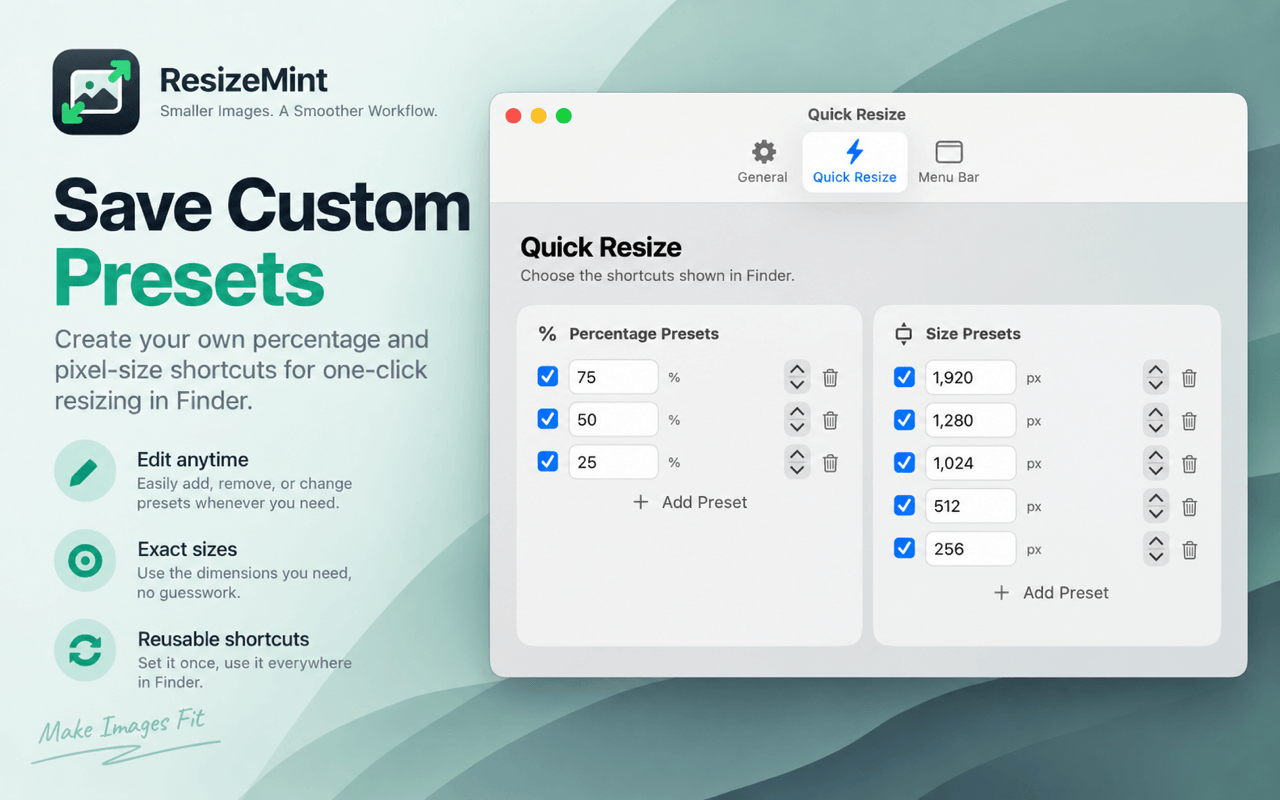
Create percentage and pixel-size presets that appear directly in Finder. Add, remove, reorder, or change them whenever your workflow changes.

  • Custom percentage presets
  • Exact pixel-size presets
  • Reusable across Finder
ResizeMint settings for custom percentage and pixel-size Finder presets
Your presets, ready where you work.
02

Batch-resize images or folders

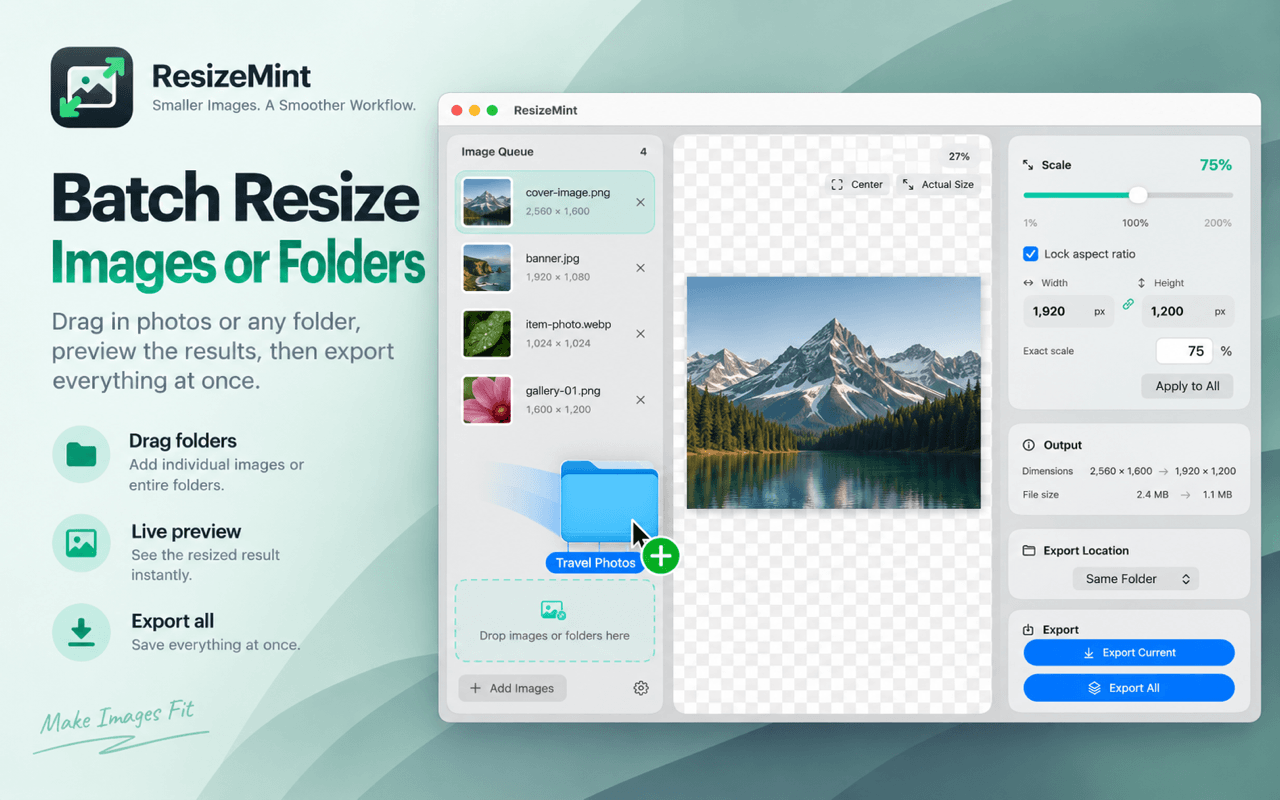
Drop a whole set of images into the native macOS workspace. Preview the result, keep the aspect ratio, apply settings across the queue, and export everything together.

  • Individual images or folders
  • Live resized-image preview
  • Export current or export all
ResizeMint batch image queue, live preview, scaling controls, output details, and export actions
A focused workspace when the job gets bigger.
03

Use it in your language

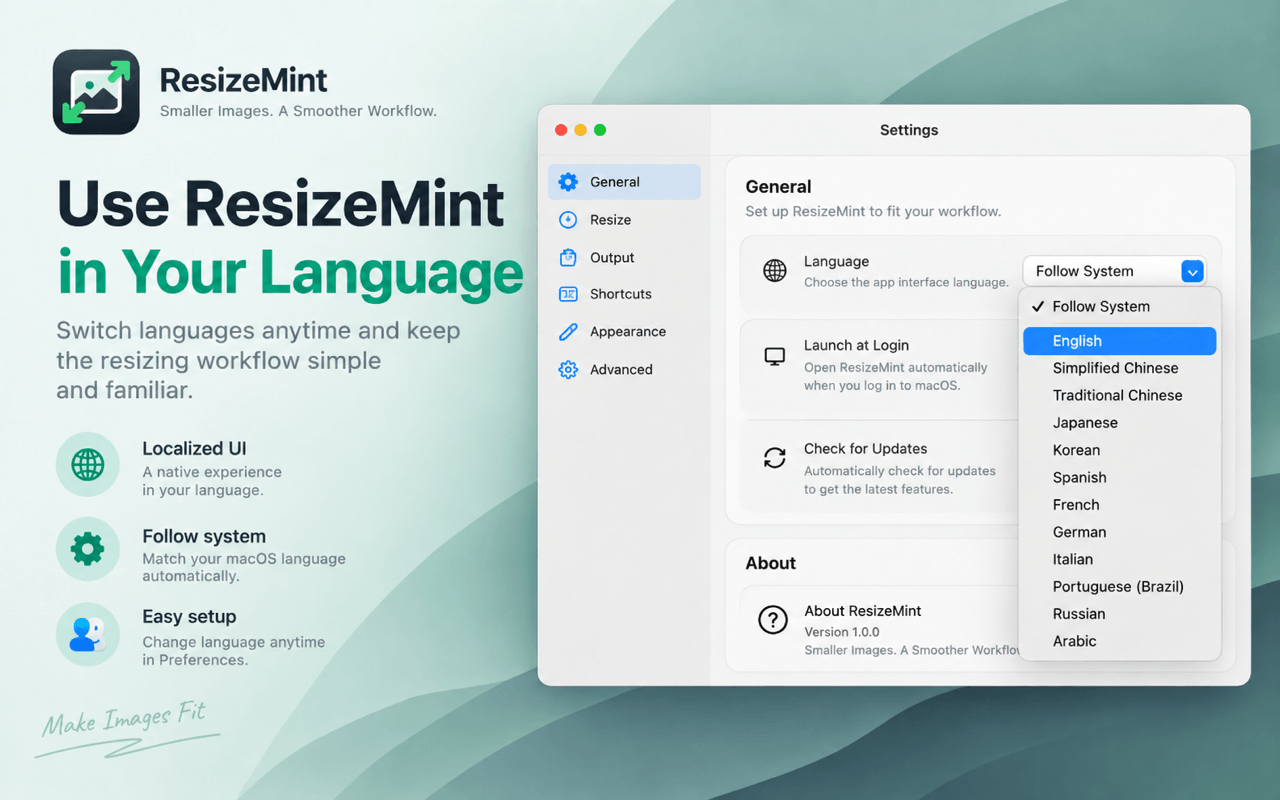
ResizeMint can follow your Mac language automatically or switch inside the app. Its interface supports English, Simplified and Traditional Chinese, Japanese, Korean, Spanish, French, German, Italian, Brazilian Portuguese, Russian, and Arabic.

ResizeMint language menu with Follow System and 12 supported interface languages
A familiar workflow in 12 languages.

Formats

Keep the format that fits the job.

ResizeMint supports the image formats commonly used across Apple workflows, websites, and design projects.

PNGJPGJPEGHEICWebPTIFF

Local by default

Your images stay on your Mac.

ResizeMint performs image processing on-device. It has no account system and does not include advertising, analytics, tracking, or cloud image processing.

Read the Privacy Policy

Common questions

About ResizeMint

What makes ResizeMint different from an online image resizer?

ResizeMint is a native Mac utility that works directly with Finder and processes images locally. You do not need to upload files to a website or repeat the same dimensions every time.

Can it resize several images at once?

Yes. Drag multiple images or a folder into ResizeMint, adjust the queue, preview the output, and export the current image or all images together.

Can I create my own Finder presets?

Yes. Percentage and exact pixel-size presets are configurable in ResizeMint and then appear in its Finder right-click menu.

Where can I get ResizeMint?

ResizeMint is distributed for macOS exclusively through the Mac App Store.

We are here to help

Support & Feedback

Need help with ResizeMint?

If you have a question, found a bug, or would like to suggest a feature, you can contact us using the form below.

ResizeMint app icon

Smaller images. A smoother workflow.

Make the next resize a right-click.

Download on the Mac App Store